Executing Test Plan
A Test Run represents the execution of a Test Plan.
It allows testers to run assigned test cases, record outcomes, and track execution progress in real time.
1. Navigate to Test Plans
- Open your project
- From the top navigation bar, click Test Plans
Test Runs always start from Test Plans

2. Select a Test Plan
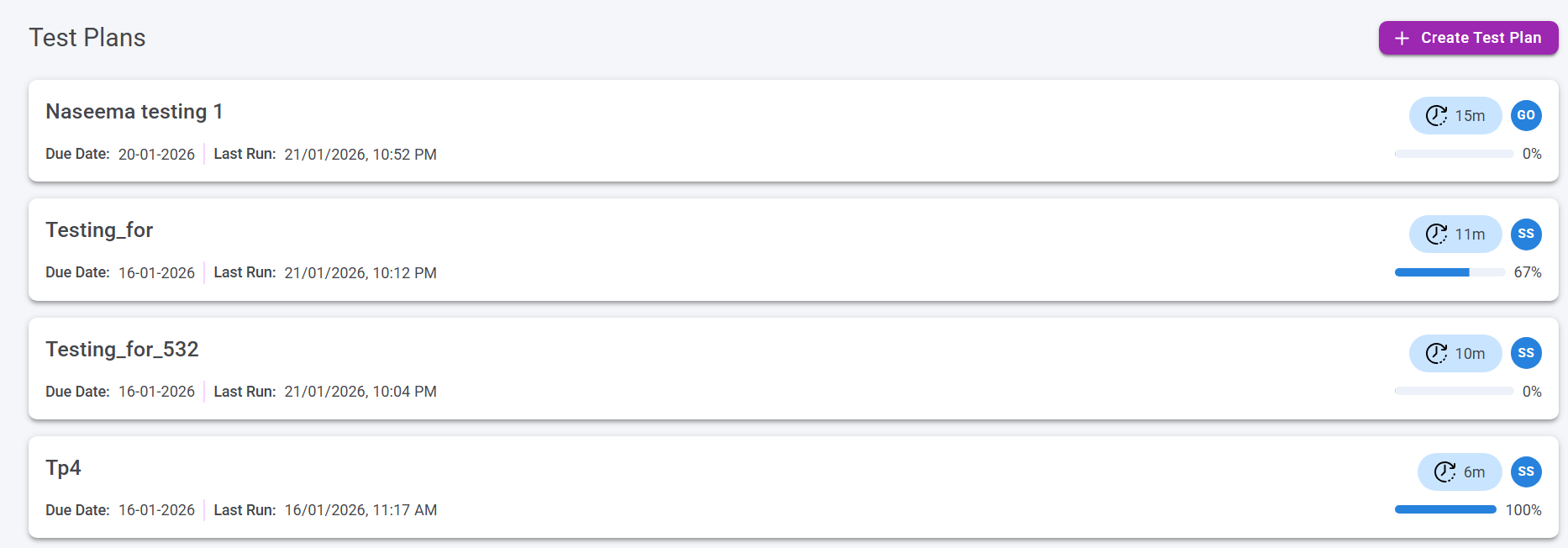
From the Test Plans list:
- Review available plans
- Click the Test Plan name you want to execute
Each card shows:
- Plan Name
- Due Date
- Last Run
- Estimated Time
- Execution Progress
3. Review Test Plan and Click Plan Run
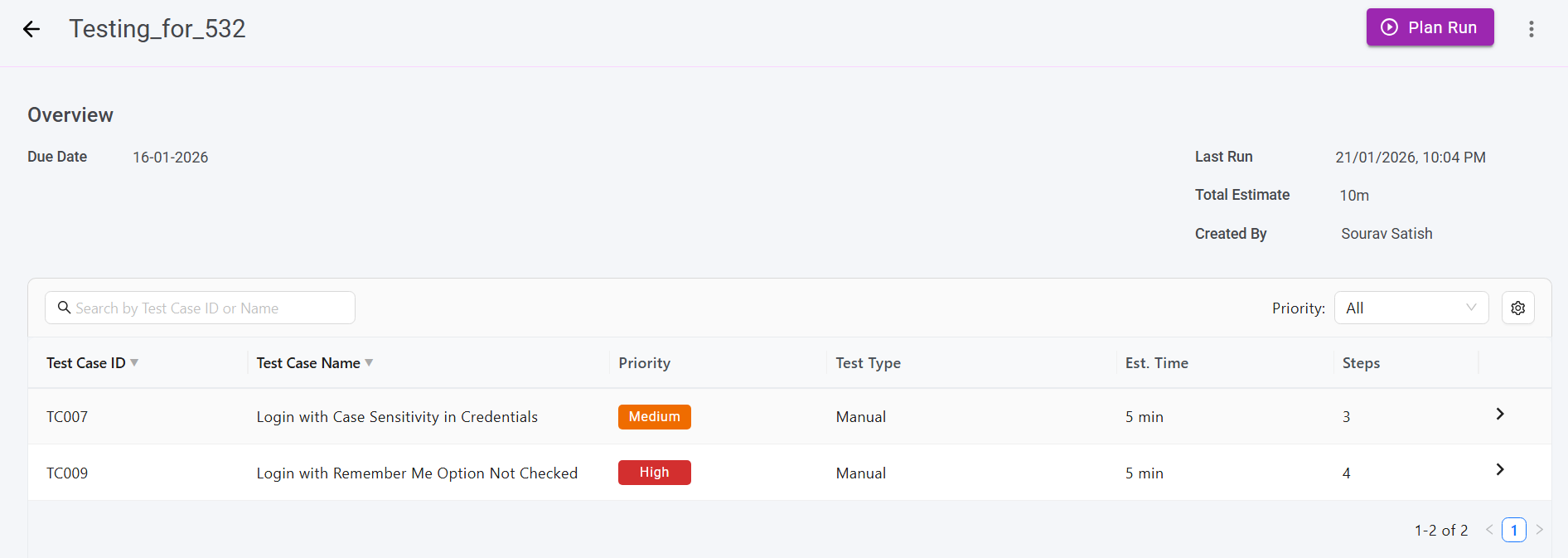
After opening a test plan, you will see all test cases included in it.
To start execution:
- Review the test cases
- Click Plan Run (top-right corner)
This opens the Plan Run dialog.
4. Select Execution Environment
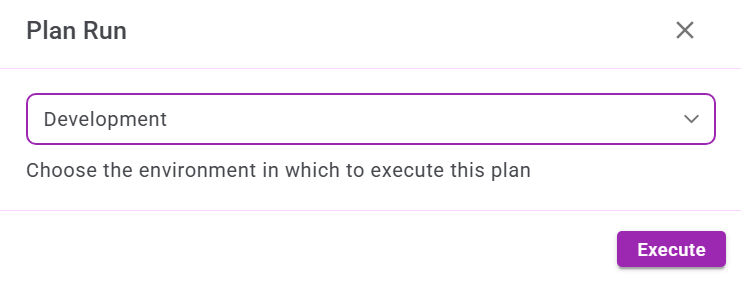
In the Plan Run dialog:
- Click Select Environment
- Choose the environment (for example: Development, QA, UAT)
- Click Execute
The Execute button is enabled only after selecting an environment.
A Test Run is now created.
5. Assign Test Cases to Users
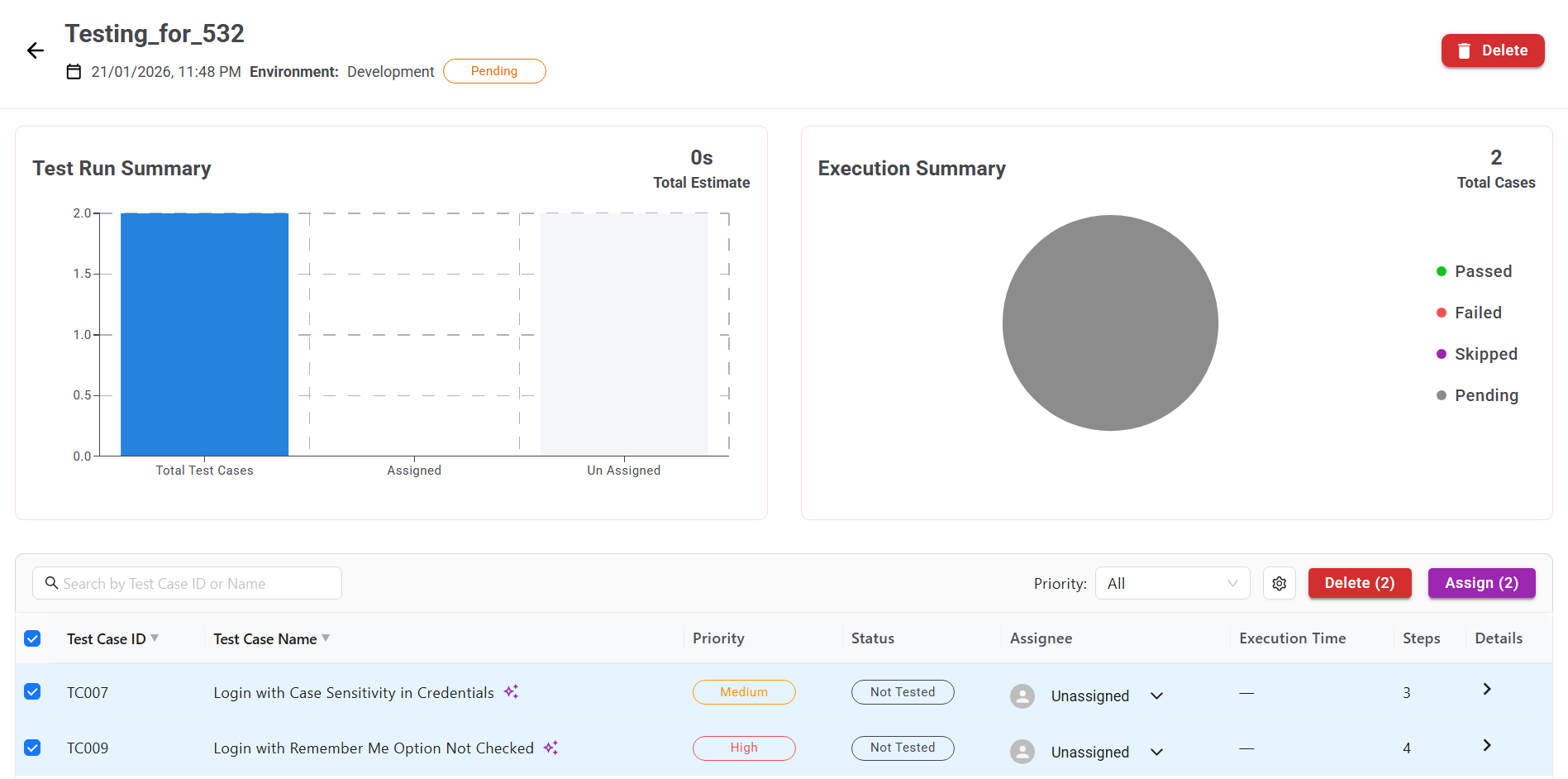
Once the Test Run is created, test cases appear in a table.
To assign test cases:
- Select one or more test cases
- Click Assign
- Choose a user
- Confirm the assignment
Only assigned users can execute test cases.
6. Start Execution
After assignment:
- Verify the Test Run status is Pending
- Click Execute Manual Test Cases
The Test Run status changes to In Progress.
7. Execute Test Cases
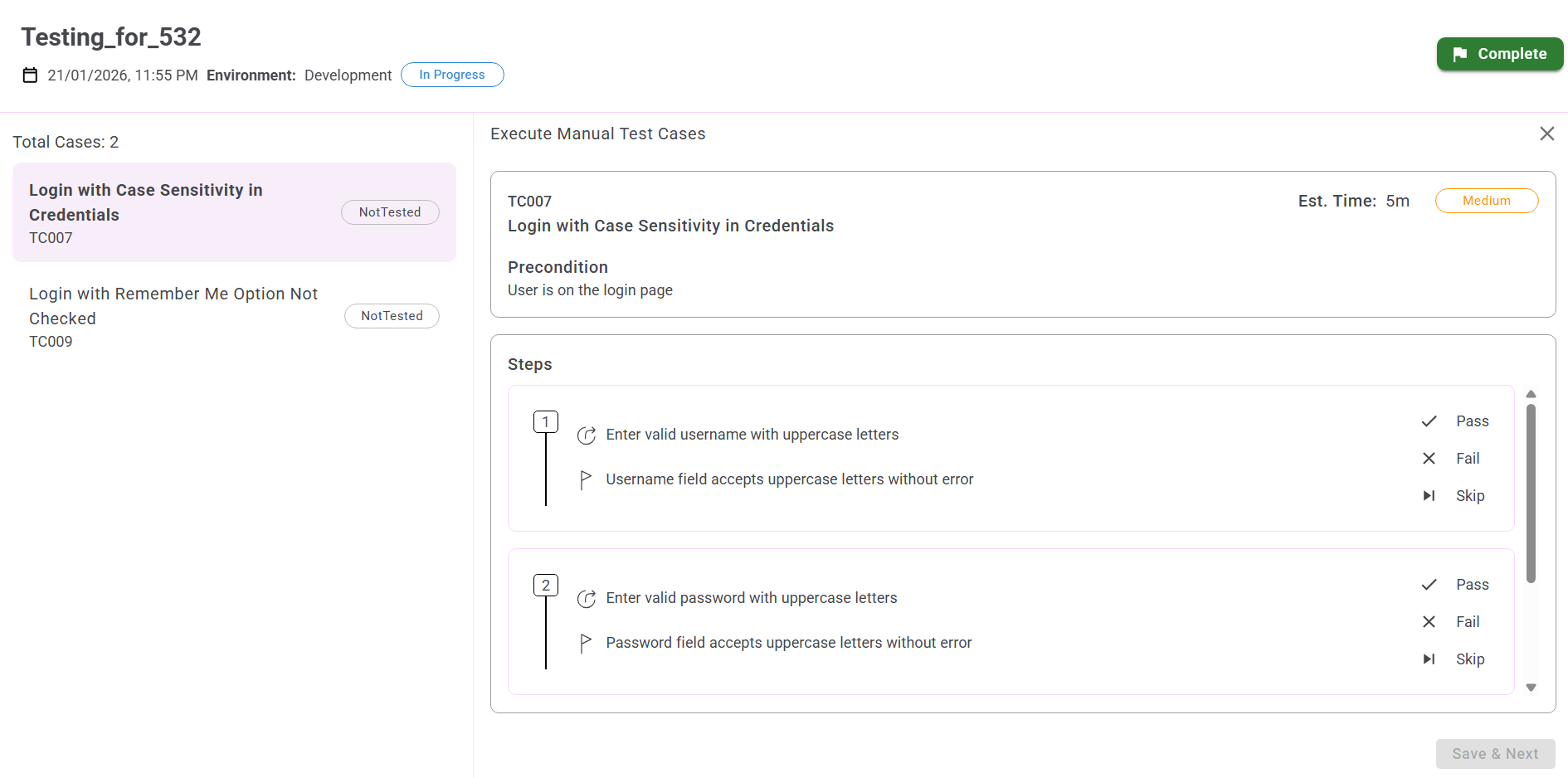
The execution screen opens.
Left Panel
- List of test cases
- Current status (Not Tested, Passed, Failed, Skipped)
Right Panel
- Test Case details
- Preconditions
- Steps and Expected Results
8. Set Test Case Status
For each step:
- Click Pass
- Click Fail
- Click Skip
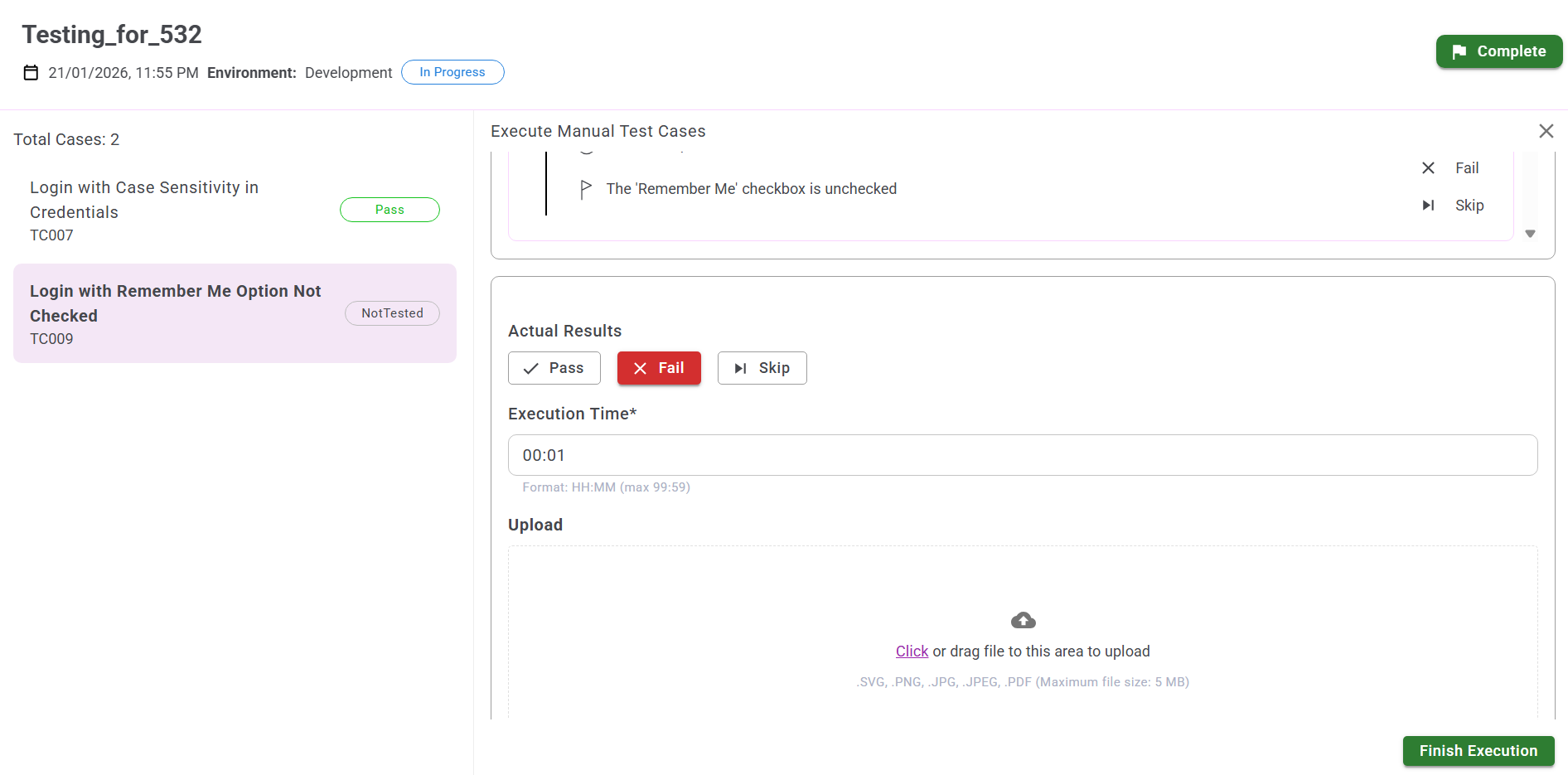
After all steps:
- Select the Final Outcome under Actual Results
- Enter Execution Time
- Add Comments (optional)
- Click Finish Execution
The next test case loads automatically.
9. Repeat for All Test Cases
Continue executing and saving results until all test cases show:
- Passed
- Failed
- Skipped
10. Complete the Test Run
Once all test cases are executed:
- Click Finish execution and then Complete (top-right)
What happens
- Test Run status becomes Completed
- Results are locked
- Dashboard is updated
- Execution history is saved
Summary
Test Runs help you:
- Execute test plans
- Assign testers
- Track real-time progress
- Record execution results
- Maintain audit history
This ensures a structured and traceable testing process.